The assistantSoon
The assistant adds, changes and finds things in your planner when you type or say what you want. It comes with Planye+ AI and opens from the Assistant flag at the foot of the spine.
- Open itThe Assistant flag at the foot of the spine, above Help.
- AskType what you want, then Send. The change lands on your page as it is made.
- Say itThe microphone hears one message. The wave beside it starts a spoken conversation.
- Take it backUndo, beside each change in the conversation.
- Skip itNothing needs the assistant. Everything it does, you can do by hand.
Opening the assistant
The Assistant flag is at the foot of the spine, above Help. It opens a panel down the right side, and your planner stays in use beside it.
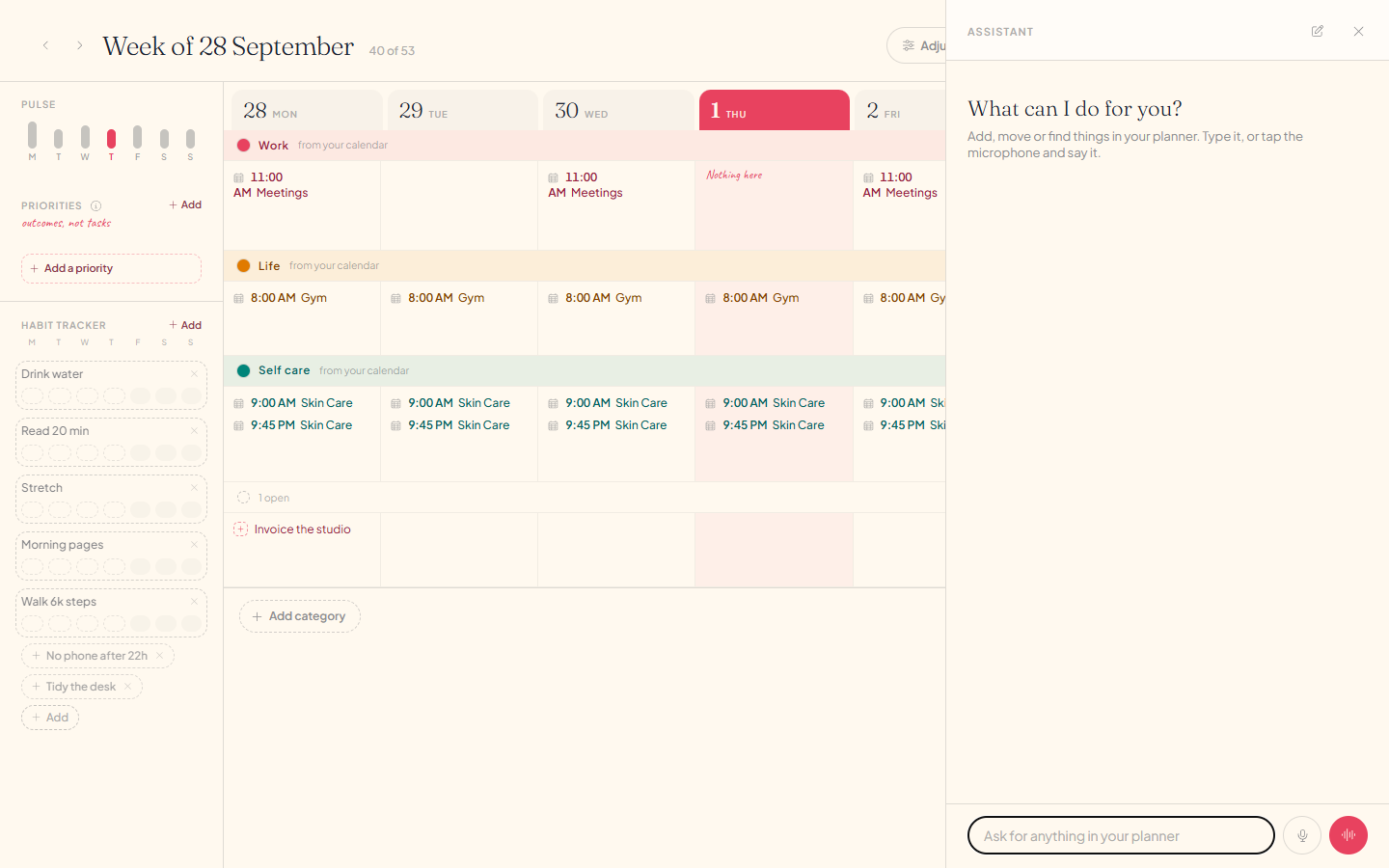
The Assistant flag is at the foot of the spine, above Help. It opens a sheet over the lower half of the page.
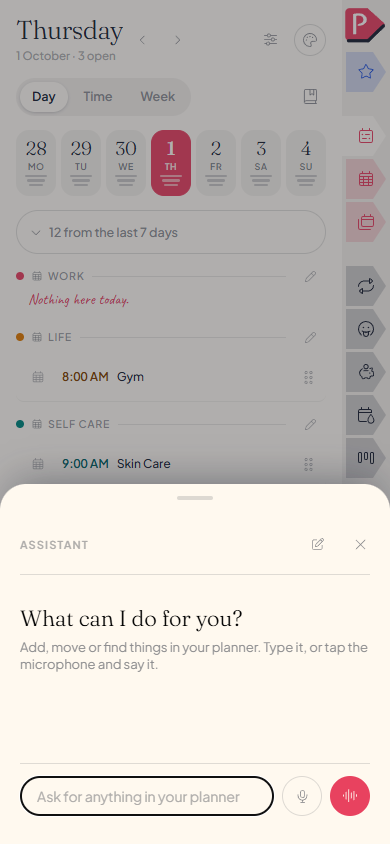
New conversation and Close are at the top. Only one of the assistant and Help is open at a time, so opening either closes the other.
Asking for something
Say what you want in your own words. “Add Call the vet to Life today at 3pm” is enough: the task, the category, the day and the hour. If something it needs is missing, such as which day, it asks.
The page beside the panel turns to where the change is, and the new line lands there.
Opening the assistant, asking for a task and watching it land on today
The sheet lowers so you can watch the change land on the page, then comes back up.
Opening the assistant, asking for a task and watching it land on today, on a phone
What you can ask for
| Part of your planner | What you can ask for |
|---|---|
| Week, month and year | Add a task with a day, a category, a time and a length. Move it, rename it, mark it done or cancel it. Add categories and priorities to a week. |
| Habits | Mark a habit for a day, add one to the week, start keeping one, pause it and resume it. |
| Lists and wishes | Make a list, add items, tick them, rename and move them. Add wishes and wish categories. |
| Projects | Add a project, its stages and its to-dos with a due day. Tick a to-do and finish a project. |
| Plan | Set the month's focus, add plan tasks and milestones, score a life area and rate a tracker for a day. |
| Money | Log a purchase or income, add envelopes, bills and income lines, update a balance and write the month's note. |
| Mood and cycle | Note how a day felt, log flow and symptoms, and add a note to either. |
| Journal and notebooks | Write on a day's journal page or in a notebook, and make notebooks and folders. |
| Shelf | Add books, films and series, mark them as reading or watched, rate them and tick episodes. |
| Capsule and memories | Start a time capsule and say when it opens. Answer a memory prompt and set the three words. |
| Calendar | See what is on from a calendar you connected, and mark an event done. |
| Settings | Turn notifications on or off and set their hour, quiet weekends, celebrations, the clock format and the language. |
| Getting around | Open a tab, a day, a week, a month, a year or a journal day. |
It answers questions about what is there too: what you have today, what is still open, what a list holds.
Two things stay with you. It writes on a journal page but never reads one back, and it does not add events to a calendar you connected: an event you ask for becomes a task in your planner.
Taking a change back
Every change is listed in the conversation with Undo beside it. Press it and the change is reversed. The line stays, struck through and marked Undone.
When you close the panel or end a spoken conversation, a card lists everything that conversation changed, with Undo all when there is more than one.
Opening the assistant and pressing Undo beside a task it added
Opening the assistant and pressing Undo beside a task it added, on a phone
Removing asks first
Removing is the one thing it asks about. It says what it would remove and waits for your yes. Everything else happens straight away, and a removal has an Undo like any other change.
Asking to remove a task, the assistant asking first, and answering yes
Asking to remove a task, the assistant asking first, and answering yes, on a phone
Speaking instead of typing
The microphone hears one message. Press it, say what you want, and stop talking or press it again. Your words are sent as a message and the answer comes back as text.
The wave starts a conversation. It listens until you pause, answers aloud, and listens again. The circle is the one control: press it to finish talking, to stop it thinking, or to interrupt it, and talking over an answer stops it too. It ends when you press the ×, say “that's all”, close the panel, or stay quiet for twelve seconds.
A spoken conversation: asking for a task aloud, the answer being spoken, and ending it. The clip has no sound
A spoken conversation on a phone: asking for a task aloud, the answer being spoken, and ending it. The clip has no sound
How much you can ask
30 messages a day on Planye+ AI. A message and everything the assistant does to answer it count as one. The number left today is at the top of the panel, and when it runs out the panel says what time it starts again.
What leaves your device
Each message goes to our server and on to the company whose model answers it, with the part of your planner the message is about: this week's tasks, say, or the items on one list. The conversation and its list of changes stay on this device, and our server keeps none of the words.
Questions about the assistant
The details, for when you want them. Nothing here is required reading.I cannot see the Assistant flag
The assistant is still being released, so the flag may not be on your spine yet. When it is, it sits at the foot of the spine, above Help.
The flag has a diamond on it and opens the plans
The assistant comes with Planye+ AI. Planye+ on its own does not include it.
Can I use it without an account?
No. Opening it offers to create an account or sign in, and your planner comes with you.
It changed the wrong thing
Press Undo beside the change. Report, under the answer, sends that conversation to us so we can see what went wrong. The assistant can misread a request or mishear a word, so read what it changed before you rely on it.
Undo says “Changed since, so left as is”
You edited that line after the assistant changed it, so Undo leaves your edit alone. “No longer there” means the line has since been removed.
I asked it to cancel a task and the task is still there
Cancelling closes the task with a dash and leaves it on the page. Ask it to remove or delete the task to take it off.
It says I have reached the daily limit
You have used today's messages. The notice gives the time the assistant is back, in your own time.
Does it work offline?
No. The assistant needs a connection. The rest of your planner works without one.
Where is the conversation kept?
On the device you had it on. It is not synced, so another device starts empty. New conversation, at the top of the panel, starts a fresh one, and a conversation left alone for six hours starts fresh by itself.
Where did the wave go?
Once you type, the wave becomes Send. Clear the field and it comes back.
What language does it listen in?
The one your app is set to, English or Portuguese.
Does speaking send my voice anywhere?
On a phone, and in Chrome or Safari, the listening is done by your device's or your browser's own speech recognition, under their policies. In a browser that cannot listen by itself, such as Firefox, the recording is sent to be written down.
Does it read my journal?
No. It can write on a page when you ask, below what is already there, but it never reads a page back.
Can I ask it about my cycle, my mood or my money?
It logs what you tell it and reads back what is there. It is not a doctor, a diagnosis or a financial adviser.